School pickup queue TV: a real-time panel at the gate
· 9 min read
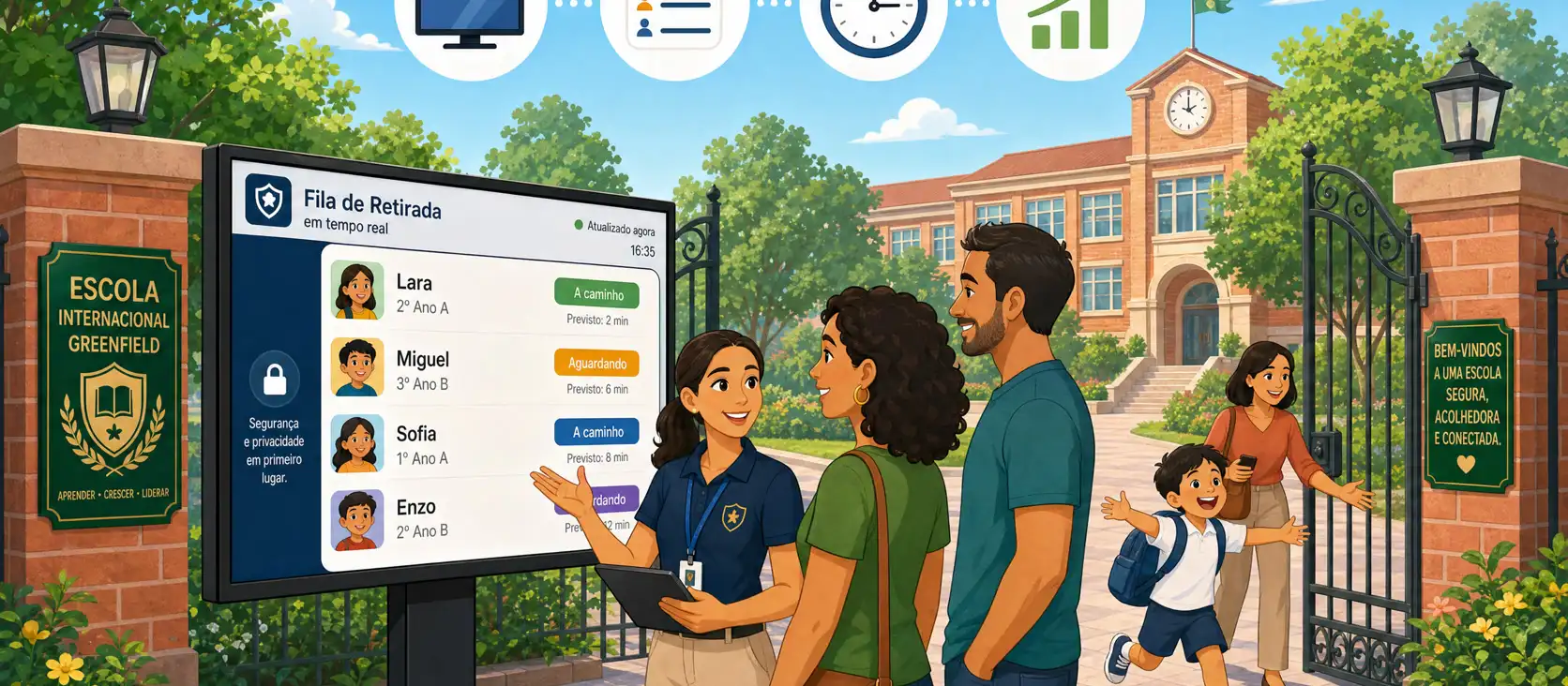
Pickup line stress does not start only at the curb. It starts in the head of whoever is waiting without knowing whether their child was already called, whether the car can pull forward, or whether gate staff are still releasing the class ahead. A well-configured TV panel at the gate does not “fix the queue by itself.” It reduces the sense of chaos, aligns what families see with what operations already know — and does it without exposing too much data on screen.
This piece is operational. It covers peak dismissal, wait perception, on-screen privacy, and how a TV panel fits the gate protocol — not half-sold feature marketing.
What the queue really costs (beyond the clock)
Leaders often measure dismissal by the clock: minutes until the last student leaves. Families measure something else: how many times they asked for information, how many times the car sat still with no reason given, how many times a name was shouted across the sidewalk.
Those two metrics diverge. An operation can be “fast” on the stopwatch and still feel disorganized from outside. Wait perception rises when information is not readable, when guardians cannot see queue order, and when staff answer every question with the same “almost.”
We covered operational cost and family experience in the financial impact of the school pickup queue and flow tactics in school pickup queue management. Here the cut is narrower: what families see on the wall — and what the school chooses to show.
Why a gate TV panel changes the dynamic
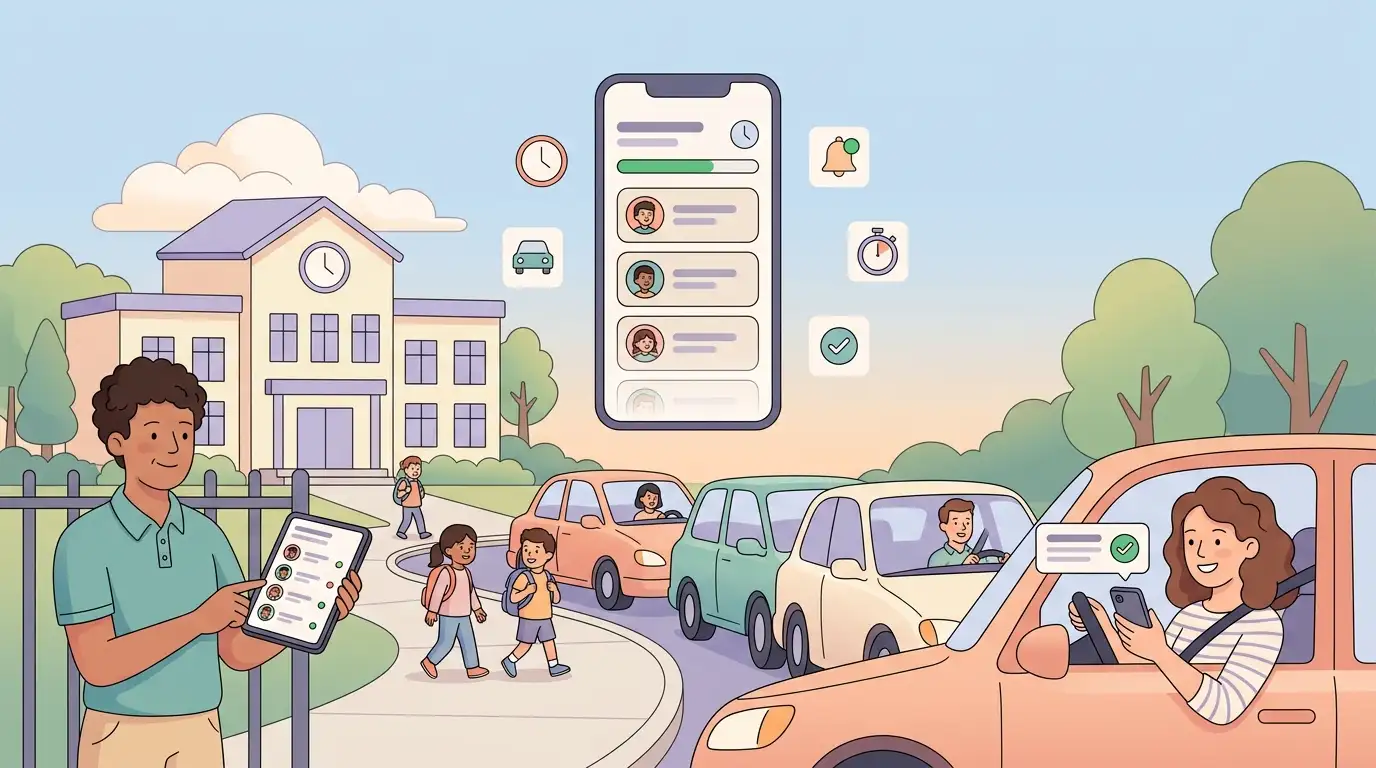
Without a display, queue information lives in a gatekeeper’s head, on a radio, in a notebook, or on a coordinator’s phone. Every arriving guardian becomes a new question. Every question becomes an interruption. Every interruption slows the release of whoever was already in the right order.
A TV panel dedicated to pickup puts the operational state in one place, readable at a distance, updated in real time. It does not replace authorization, identity checks, or the protocol for who may pick up a student. It complements: families see progress; staff focus on what only humans do well — validate, release, handle exceptions.
In schools with drive-thru lanes, split yards, or more than one gate, the panel also cuts back-and-forth between areas. Drivers do not need to leave the car to ask whether the class is out. Pedestrians do not need to shove the line to hear a name on a megaphone.
The practical guide on how to organize student arrival and dismissal covers flow design. The panel is the visibility layer of that flow — not the protocol itself.
Privacy on screen: what to show and what never to show
A gate TV is a storefront. People on the sidewalk, in cars, and anyone filming “just a quick video” can see it too. So layout privacy level matters as much as screen resolution.
Sound operational practices, without invented percentages:
- Prefer identifiers families recognize without oversharing (first name + initial, call code, class) instead of unnecessary full personal data.
- Avoid CPF/ID numbers, phone numbers, addresses, or large student photos on a street-facing display.
- Decide whether the screen shows only the active queue for that gate/scope or the whole school — wrong scope becomes noise and risk.
- Align what appears on the panel with what the school gate protocol already requires: release still needs verified identity; the TV does not authorize pickup.
On-screen privacy is not a design flourish. It is a management decision: the panel exists to cut questions and anxiety, not to become a mural of personal data.
Simple pairing: from a 6-digit code to a real TV
In practice, a Kidsflow pickup-queue display starts like this:
- Someone on the ops team opens app.kidsflow.com.br/tv on the smart TV, stick, or screen browser.
- The screen shows a 6-digit code.
- In the admin panel, under /manager/tvs, the school pairs that code to the campus.
- The TV receives a name, scope (which queue/unit), layout, and privacy level.
That matters because a gate TV is not a meeting laptop. It reboots, loses HDMI, drops Wi‑Fi in the rain, and sometimes “opens the app store” alone after an update. Pairing built for real TVs — with boot and connection diagnostics — avoids the classic scene: 5:20 p.m., black screen, nobody remembers the Android TV password.
Name each display by physical place (“Gate A — drive”, “Early childhood hall”), not by device model. When the school replaces the TV, the operational link stays clear.
Layout, scope, and peak dismissal
A useful pickup panel answers three questions without a caption:
- Where am I in the operation? (which gate / class / unit this screen covers)
- What is happening now? (calls, order, queue status)
- What should I do? (advance, wait, go to another point)
Too much scope on one screen creates confusion. Too little creates a ghost queue at another gate. A layout unreadable at three meters — tiny type, weak contrast, too much motion — sends families back to verbal questions.
At peak time, less is more: stable information, continuous updates, no generic announcement slides competing with the queue. Keep long notices on another channel; the dismissal TV is an operations tool, not a birthday board.
How the panel fits the protocol (and what it does not do)
Gate protocol defines custody, authorization, verification, and logging. A TV panel does not release a student. It does not replace guardian checks. It does not erase the need for an auditable log.
What it does well:
- Mirrors the queue the dismissal system already organizes.
- Cuts staff interruptions when every second counts.
- Gives families a shared reference (“already called”, “not yet”), reducing pushing and shouting.
- Helps new staff see the flow without memorizing order by heart.
What stays human and non-negotiable:
- Who may pick up that student.
- Identity confirmation (app, ID document, face — per the school’s protocol).
- Exceptions (one-off authorization, late pickup, guardian swap).
- A record of what happened.
Treat the TV as a visual extension of the written protocol — not a shortcut. A school that hangs a pretty screen and keeps releasing by improvisation only changes the scenery of the same risk.
Pairing and boot diagnostics: the detail that saves peak hour
Gate smart TVs fail in predictable ways: loose cable, app closed by the remote, school-network DNS, overnight update that asked for a store login. So pairing and boot diagnostics are not an IT luxury — they are an operations checklist.
Before peak (and ideally in a short weekly routine):
- Confirm the TV opens straight into the display URL/app, not a home screen full of ads.
- Test reconnect: pull network or Wi‑Fi for a few seconds and see whether the panel recovers alone or needs intervention.
- Make sure the pairing code is not orphaned: a display with no link in /manager/tvs is decorative wallpaper.
- Document who on campus can reopen the app and where the remote lives (yes, remotes disappear).
When the screen fails at 5 p.m., plan B cannot be “text the coordinator group.” It must be: guided restart, a backup display, or a temporary return to a already-trained verbal flow — with staff knowing which is which.
Family experience without turning into theater
Families do not ask for a “TV product.” They ask for predictability. They want to know whether parking is worth it, whether their child is already heading to the gate, whether the line moved while they were on the phone.
An honest panel improves experience without promising miracles:
- Do not invent status. If the call has not happened, the screen must not imply it has.
- Do not use the TV to hide structural delay (a class that is always late, an undersized gate). Clear information exposes bottlenecks — and that helps leadership.
- Train staff to point at the panel instead of repeating the same sentence twenty times. Aligned language (“you are in the on-screen order”) reduces friction.
The TV lowers the sense of chaos when the operation behind it is at least minimally organized. Panel + improvised queue = anxiety with captions.
Rollout in stages (without project drama)
- Choose the physical spot. Height, angle, afternoon sun, glass glare, distance from cars and pedestrians.
- Define scope and privacy before powering the device. Align with coordination and, if needed, the school’s counsel.
- Pair and name the display in /manager/tvs.
- Test off-peak with gate staff — not only IT.
- Tell families what the screen shows and what the protocol still requires (authorization, ID, app).
- Review in the first week of real use: readability, repeated questions, network failures.
If the school is still maturing dismissal flow, start with protocol and queue organization; the panel amplifies what already works. If flow exists and the pain is gate communication, the display is often the missing link between system and curb.
FAQ
Does the gate TV replace the guardians’ app? No. The panel shows queue progress at school. Authorization, guardian check-in, and release still follow the digital process and gate protocol.
Do I need an expensive smart TV? You need a stable screen, reliable network, and a device that opens the display URL/app without drama. The bottleneck is usually network and boot routine, not showroom brightness.
What is the 6-digit code? It is pairing: the TV shows the code at app.kidsflow.com.br/tv; ops confirms the link in /manager/tvs and sets name, scope, layout, and privacy.
Can I show full student names and large photos? Weigh privacy and street exposure. In general, less identifying data on a public screen is safer. Layout privacy levels exist for that reason.
What if the TV dies mid-dismissal? Have a trained plan B: restart, spare display, or return to verbal announcements aligned with protocol. Boot and network diagnostics reduce the odds — they do not remove the need for plan B.
Does peak hour get worse with more information on the wall? It gets worse if information is confusing or stale. It gets better when the screen is readable, scoped, and synced to the real queue — then repeated questions drop.
Can one panel serve more than one gate? Yes, with scope per display. One TV per critical point usually works better than a single screen trying to show the whole school.
Does this change the school’s legal responsibility at dismissal? Custody and verification of who takes the student remain in the protocol and the release log. The panel is operational communication, not authorization.
Conclusion
School pickup mixes real-time pressure, end-of-day emotion, and duty of care. A well-paired TV panel — right scope, readable layout, calibrated privacy — does not erase congestion alone. It reduces the sense of chaos, frees staff to release with attention, and gives families a shared reference at the gate.
Combine the display with a written protocol, an organized queue, and a record of who picked up whom. If your school already feels the pain of “everyone asking the same thing at 5:30 p.m.,” the next useful step is mapping where information should be visible — and testing a truly paired display on the gate TV before the next peak.
To see pairing and the panel in the context of digital dismissal, start at kidsflow.com.br and decide with your team whether a queue TV closes what protocol and app already do in operations.